Getting started
Open Alkanex with one command, find your way around the main menu, and place your first trade.
Alkanex lives entirely inside Telegram. There is nothing to install, no extension to connect, and no wallet pop-up to sign. You open a chat, create a Bitcoin wallet in a couple of taps, and trade by tapping buttons.
This page gets you from a cold start to your first trade.
Open the bot
Start a chat with the Alkanex bot and send /start, or tap Start. That single command is the only one you ever need. Everything else is done with inline buttons, so there are no commands to memorise.
The first time you open it, the bot detects your language from your Telegram settings: English, or 中文 if your Telegram language starts with zh. You can change it any time under Settings -> Language.
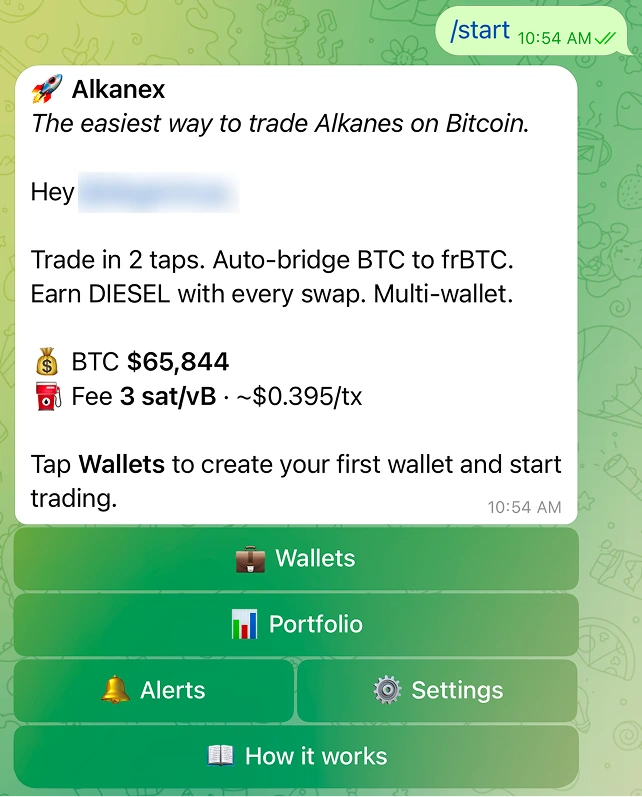
The welcome panel greets you and, for a returning user, shows your wallet's BTC balance and the current network fee. For a new user it reads:
Trade in 2 taps. Buy with BTC. Earn DIESEL with every swap. Multi-wallet.
It then nudges you to tap Wallets to create your first wallet and start trading.
The main menu
After /start you land on the home screen. It has four buttons:
| Button | What it does |
|---|---|
| Wallets | Create, view, and manage your Bitcoin wallets |
| Portfolio | Your total balance and open positions |
| Settings | Display unit, slippage, fee cap, DIESEL mining, security, language, and more |
| How it works | Opens this guide |
Everything you need to trade lives under Wallets, Portfolio, and Settings. How it works opens this documentation.
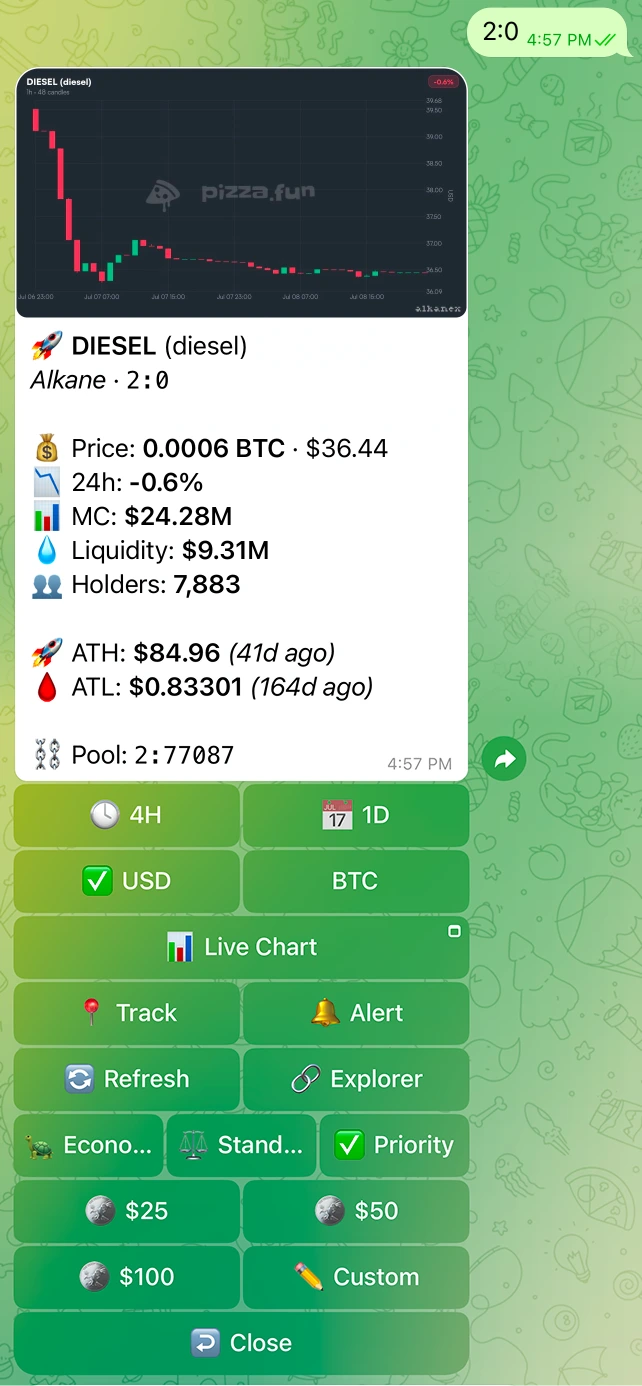
You do not have to use the menu to look up a token. You can paste an AlkaneId straight into the chat at any time, for example 2:0, written as block:tx. The bot pulls up that token's live card, with price, 24h change, market cap, liquidity, holders, the route to frBTC, and a chart.
Where the Buy button lives
Your first trade, end to end
Here is the whole path, start to finish. Each step has its own detailed page.
1. Create a wallet
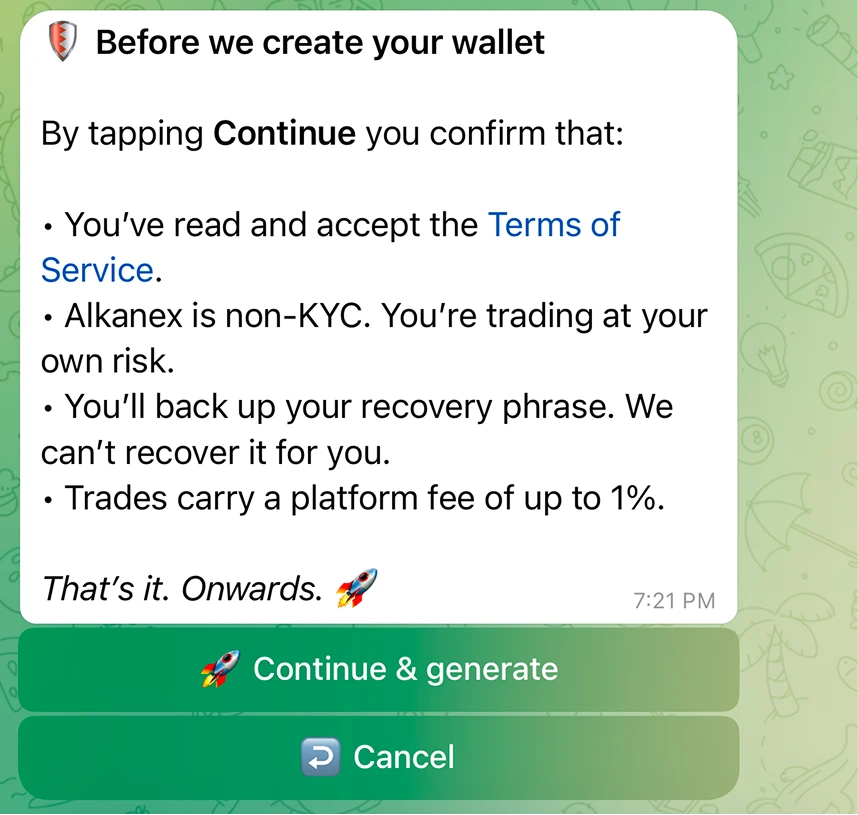
Tap Wallets, then Generate Wallet. Before the wallet is created you confirm a short terms screen: that you accept the Terms of Service, that Alkanex is non-KYC and you trade at your own risk, that you will back up your recovery phrase (nobody, including the operator, can recover it for you), and that trades carry a platform fee of up to 1%. Tap Continue & generate.
Your first wallet is set active automatically. You are then offered your recovery phrase. You can Reveal phrase and back it up now, or tap I'll do it later and open the funded wallet card straight away. Backup is offered, not forced.
Back up early
2. Fund the wallet
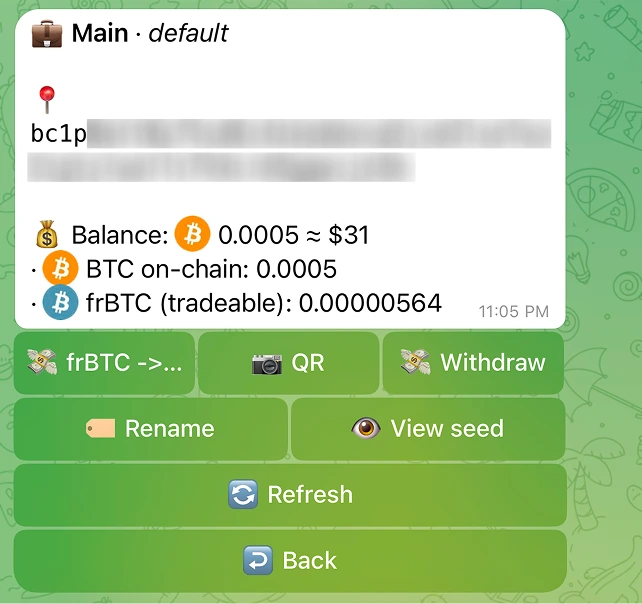
Send BTC to your deposit address. It is credited to your wallet and stays as BTC, ready to spend when you buy. You open the Deposit screen from your Portfolio / balance panel by tapping Deposit. The wallet card also shows the address as tap-to-copy text plus a QR button.
Crediting is not instant
You can watch your deposit move through its states (in mempool, then confirmed) and you get a notification at each step. See the Funding your wallet page for the full picture.
If you do not hold Bitcoin yet, you can fund from another network instead. Tap 🌉 Bridge, send ETH, USDC, USDT, SOL, BNB or TRX, and native Bitcoin lands in your wallet. See Bridge to Bitcoin.
3. Open a token
Paste the token's AlkaneId (block:tx, for example 2:0) into the chat, or open one from your Portfolio. The bot loads a live card with the price, 24h change, market cap, liquidity, holders, the route to frBTC, the price impact, the total fee, and a chart. Risk badges flag a thin pool, a hard-to-exit token, or a token with no route to frBTC.
If a token has no pool, the card tells you plainly:
No AMM pool yet. Token is not tradeable here.
4. Buy on the token card
You buy from the token card itself, by choosing an amount preset ($25 / $50 / $100, or Custom). The bot funds the buy for you: it spends the frBTC you already hold, or wraps BTC when it needs to, so there is no BTC-versus-frBTC choice to make. It then quotes the trade, builds the Bitcoin transaction, signs it, and broadcasts it for you. No wallet pop-up, no transaction to sign by hand.
How a BTC-funded buy reaches the chain
Before it signs, the bot adds a hard confirmation for high price-impact trades, hard-to-exit tokens, and large trades. You also set a slippage limit and a network-fee cap in Settings, and trades never pay above the cap.
If a swap reverts, your funds are safe
5. Track your position
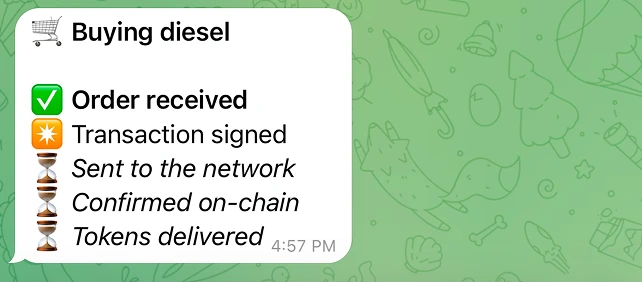
Watch the live status update in place: order received, signed, sent, confirmed, delivered. When it lands, open your position from Portfolio to track its PnL, pin it for live updates, or share a branded PnL card. See the Your positions page.
A note on DIESEL
On buys and normal swaps (not sells), Alkanex can mine DIESEL into your own wallet in the same transaction. It is 100% yours, kept on by default in Settings -> DIESEL Mining, and adds only a small amount to the network fee. Your operator enables the feature account-wide, and the per-user toggle then controls it for you. The DIESEL mining page has the full story.
What to read next
| Page | When you need it |
|---|---|
| Wallets | Multiple wallets, renaming, the wallet card |
| Backup and recovery | Revealing and safeguarding your recovery phrase |
| Funding your wallet | Deposit states, realistic timing |
| Reading a token | Every field and risk badge on the token card |
| Buying | The amount presets, preview, confirmations, and timing |
| Settings | Every toggle and its default |