Wallets
Create, fund, switch, and manage your Bitcoin wallets, all inside Telegram.
Your wallet is where your BTC, your frBTC, and your tokens live. Alkanex creates it for you, signs your trades with it, and lets you reveal the recovery phrase whenever you want. You never leave the chat.
This page covers creating your first wallet, running several wallets at once, and the per-wallet card. Backup and recovery has its own page, and funding (deposits) and converting to BTC are covered separately too.
These are trading wallets
Create your first wallet
From the main menu, tap Wallets. If you have no wallet yet, you get a short panel with one action, Generate Wallet.
The terms gate
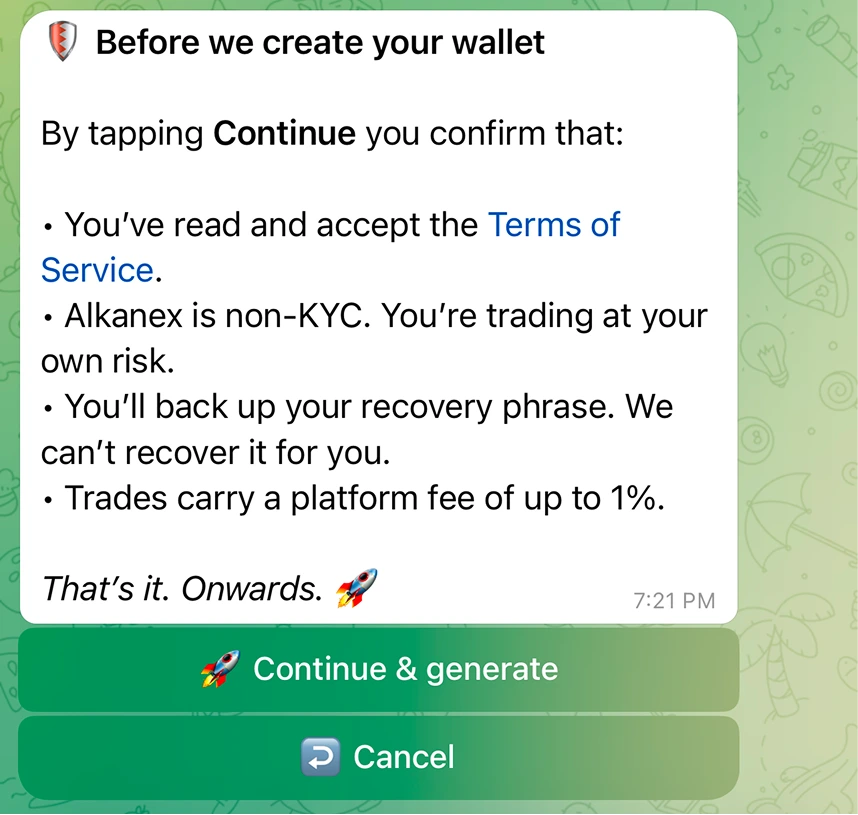
Before anything is created, the bot shows a quick terms screen titled "Before we create your wallet". Tapping Continue & generate confirms that:
- You have read and accept the Terms of Service.
- Alkanex is non-KYC, and you are trading at your own risk.
- You will back up your recovery phrase, and the operator cannot recover it for you.
- Trades carry a platform fee of up to 1%.
This is the only gate. There is no email, no phone number, and no identity check. Your only identity is your Telegram account.
What gets created
Tap Continue & generate and the bot generates a Bitcoin wallet for you (a taproot wallet, the modern bc1p kind). Your recovery phrase is encrypted at rest, and the bot holds the key so it can sign your trades in one tap. This is the custodial-by-default model. See the Security and custody page for the full picture.
Your first wallet is set active automatically, so you can start using it right away.
Back up now, or do it later
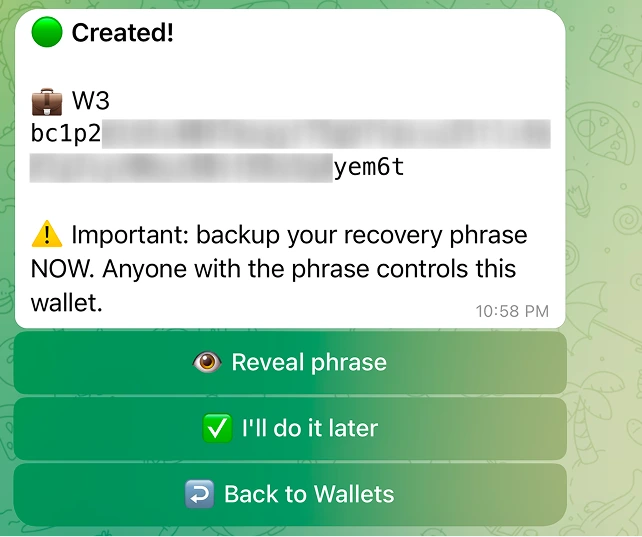
Right after creation the bot reminds you:
Important: backup your recovery phrase NOW. Anyone with the phrase controls this wallet.
You have two choices:
| Choice | What happens |
|---|---|
| Reveal phrase | Shows your recovery phrase so you can write it down. The message auto-deletes after 60 seconds. See the Backup and recovery page. |
| I'll do it later | Skips the reveal and opens your funded wallet card. Nothing is shown, nothing is forced. |
Backup is offered, not forced. Tapping I'll do it later does not reveal your seed and does not block you from trading. You can reveal and back up the phrase any time from the wallet card. Do it early though, because nobody, including the operator, can recover the phrase for you.
Running multiple wallets
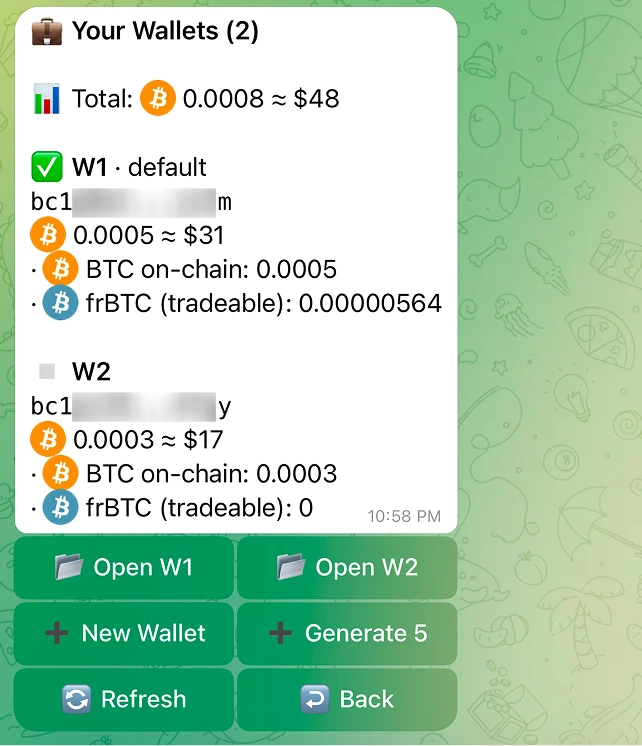
You can keep several wallets in one account, which is handy for separating strategies or positions. The wallet list shows each wallet, the count in the title ("Your Wallets (3)"), and a running Total across all of them in BTC and USD.
Add another wallet
Tap New Wallet to create one more. Each new wallet is added at the next index (your second wallet is W1, your third is W2, and so on), one at a time. New wallets are not set active automatically, only the very first one is.
Set a default wallet
Open a wallet and tap Set active to mark it as your default. It shows a default badge in the list and on its card, so you always know which one is marked. Only one wallet is the default at a time.
Every money action (Withdraw, frBTC -> BTC (convert), Rename, View seed) runs on the wallet card you open. A From line shows which wallet is being used. The default badge is a label for now.
Rename a wallet
Tap Rename on a wallet card to give it a label. The bot asks you to reply with the new label:
Send the new label for W1 (max 24 chars). Reply to this message.
Labels are capped at 24 characters. A good label ("Main", "Degen", "Cold") makes the list much easier to read once you have a few wallets.
The wallet card
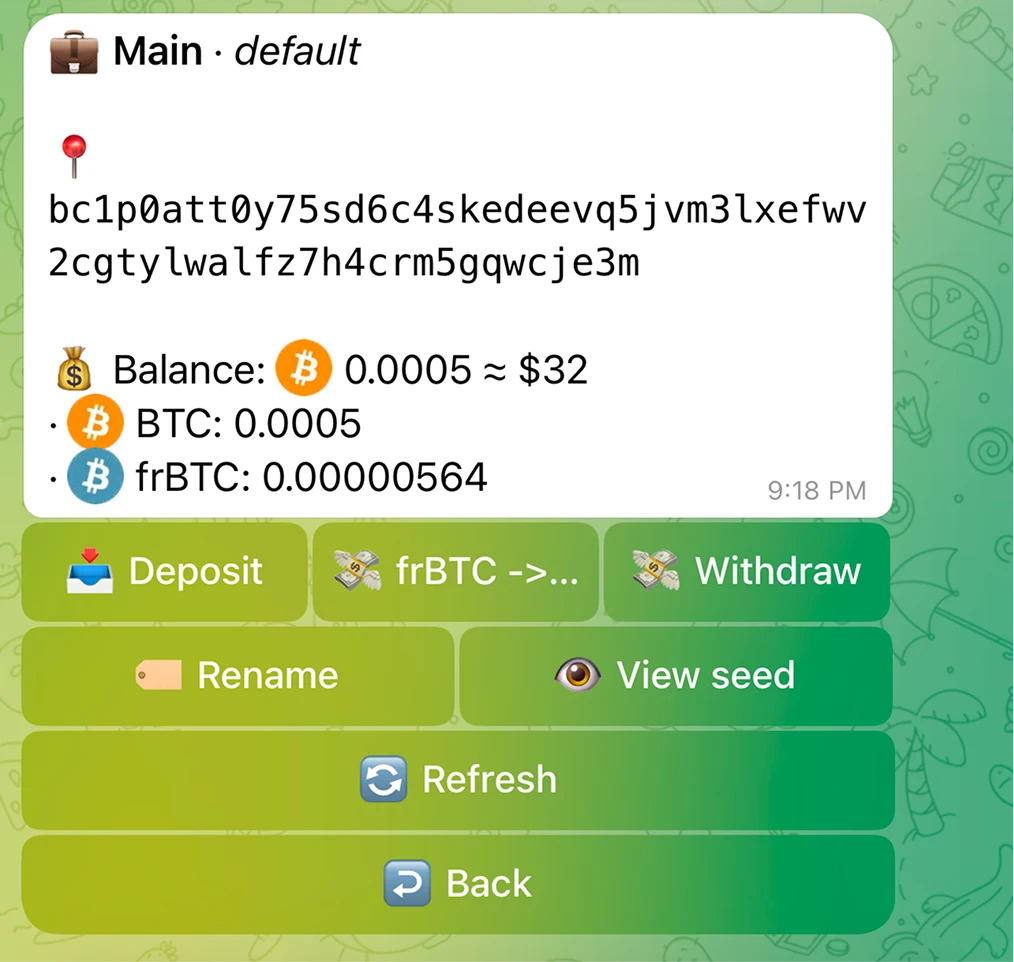
Open any wallet to see its card. It shows everything you need to receive funds and manage that wallet:
| Field / button | What it shows or does |
|---|---|
| Address | This wallet's bc1p deposit address, shown as a tap-to-copy field (tap it in Telegram to copy). |
| Balance | The wallet's current balance. |
| Deposit | Opens the deposit-address panel with a scannable QR, so you can fund this wallet in a tap. |
| frBTC -> BTC | Converts your frBTC back into native BTC in this same wallet (see Convert to BTC). This button appears only when you actually hold frBTC. |
| Withdraw | Sends BTC (or frBTC) out to an external address, scoped to this wallet (see Withdraw to an external wallet). |
| Rename | Set a label, up to 24 characters. |
| View seed | Reveals the recovery phrase (auto-deletes after 60s). See Backup and recovery. |
| Set active | Marks this wallet as your default. Shown when it is not already the default. |
| Refresh | Re-reads the balance. |
Deposit is the primary action on the card: it opens the deposit address (with a QR) so a new wallet is one tap from being funded. Funding is covered in full on the Funding your wallet page.
Coming soon
A few wallet actions are not live yet. They are listed here so you know what to expect, and what not to rely on today.
Import existing seed
Coming soonThe empty-wallets view shows an Import existing seed button, but the import flow is not built. Tapping it only tells you it is coming soon and does nothing else. There is no way to bring an outside seed into the bot yet. Every wallet today is one the bot generated.
Sending funds out